
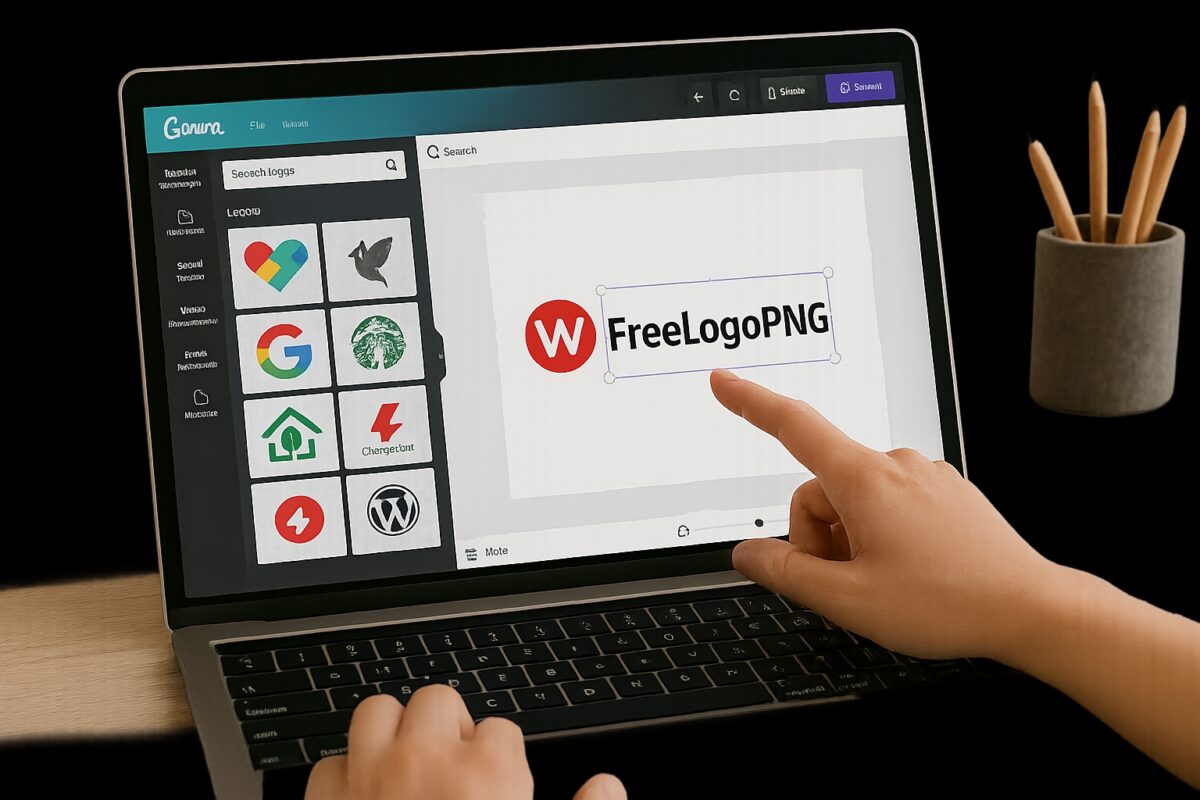

Designers use transparent logo canva images from freelogopng to add clean branding. This article shows how to find, download, verify, import, edit, and export those files. It gives quick checks and legal notes. The steps remain practical and direct so users can apply them in Canva projects quickly.
Key Takeaways
- Transparent logo Canva images from FreeLogoPNG enhance designs by eliminating background distractions and enabling seamless integration with various layouts.
- Verify logo canva images from freelogopng transparency by checking for a checkered background, sharp edges without white halos, and consistent color depth before importing logos into Canva.
- Import logos into Canva via the Uploads panel, scale proportionally, and use the Position menu for precise alignment and layering.
- Export logos as PNG files at appropriate resolutions for web or print, preserving transparency and adding descriptive alt text for accessibility.
- Always review FreeLogoPNG’s license terms, maintain documentation, and seek permissions to avoid legal issues when using logos commercially.
- Organize and backup original logo files, and utilize Canva’s tools to adjust opacity or remove backgrounds only if necessary.
Why Transparent PNG Logos Matter For Canva Designs
Transparent logo canva images from freelogopng save time and preserve design intent. A PNG with transparency removes backgrounds so images sit cleanly over photos, gradients, and colors. Designers avoid awkward white boxes, blend logos with layouts, and maintain consistent spacing. Canva reads PNG alpha channels and places logos without extra masking. Using transparent logo canva images from freelogopng also helps with responsive layouts because the logo layer can scale without carrying a background. For web pages and social posts, transparent logos appear more professional and match brand palettes directly.
How To Find, Download, And Prepare Transparent Logos From FreeLogoPNG
Search FreeLogoPNG with exact brand names and add the phrase “transparent PNG” when necessary. Inspect the thumbnail for checkered backgrounds or explicit “transparent” labels. Download the highest available PNG. Save the file with a clear name and organize it into a project folder. Open the PNG in a simple image viewer to verify transparency. If the file shows a checkered background or no visible rectangular block, the file likely has an alpha channel. If the PNG includes a visible background, request another variant or use a background removal tool. Keep the original download as a backup: work from a copy.
Quick Step Checklist To Verify Transparency And File Quality
- Open the PNG in an image viewer. Confirm a checkered background or clear edges.
- Zoom to 100% and inspect edges for halos. Reject files with visible white outlines.
- Check file size. Very small files may be low quality: very large files may be unnecessary.
- Verify color depth: truecolor PNGs preserve brand colors.
- Test the PNG on a dark and light background to confirm legibility.
- If needed, run a one-click background removal tool and save as PNG again.
This checklist helps ensure the transparent logo canva images from freelogopng perform well in Canva.
Importing, Positioning, And Editing Transparent Logos In Canva
Upload the transparent logo canva images from freelogopng to Canva via the Uploads panel. Drag the PNG onto the canvas and let Canva place the layer. Use corner handles to scale the logo: hold Shift to preserve proportions. Use the Position menu to align the logo left, center, or right. Use Canva’s transparency slider to reduce opacity when overlays are needed. Use the Effects > Background Remover only if the PNG still shows a background. For precise placement, enable rulers and snapping. Group the logo with nearby elements to lock its layout. Export a test image to confirm final placement.
Optimizing Logos For Web And Print: Size, Export, And Accessibility Tips
Choose export size based on use. For social posts, a 1200px wide PNG often suffices. For web headers, export at 2x the displayed size for sharpness on high-density screens. For print, obtain a vector or a high-resolution PNG (300 DPI) when possible. Export as PNG to preserve transparency. Add descriptive alt text when placing logos on web pages so screen readers convey the brand. Keep file names concise and descriptive to aid asset management. Test exported images on several backgrounds and devices. When a vector is not available, export multiple PNG sizes from Canva to serve different breakpoints. For claims about official sports logos and available PNG formats, see the page on MLB logos in PNG for an example of offered file types.
Legal Considerations And Best Practices When Using FreeLogoPNG Assets
Check the license on each FreeLogoPNG download. Confirm whether the file allows commercial use, modification, and redistribution. Keep a record of license text and the download URL. When a brand restricts logo use, request written permission or use the brand’s media kit. Credit the source in internal documentation if required. Avoid altering trademarked elements in ways that misrepresent the brand. If the project will publish at scale, consult a legal advisor before using logos commercially. For team workflows, store cleared logos in a shared asset library with license notes. These steps reduce legal risk when using transparent logo canva images from freelogopng.
